AI VIDEO GENERATION
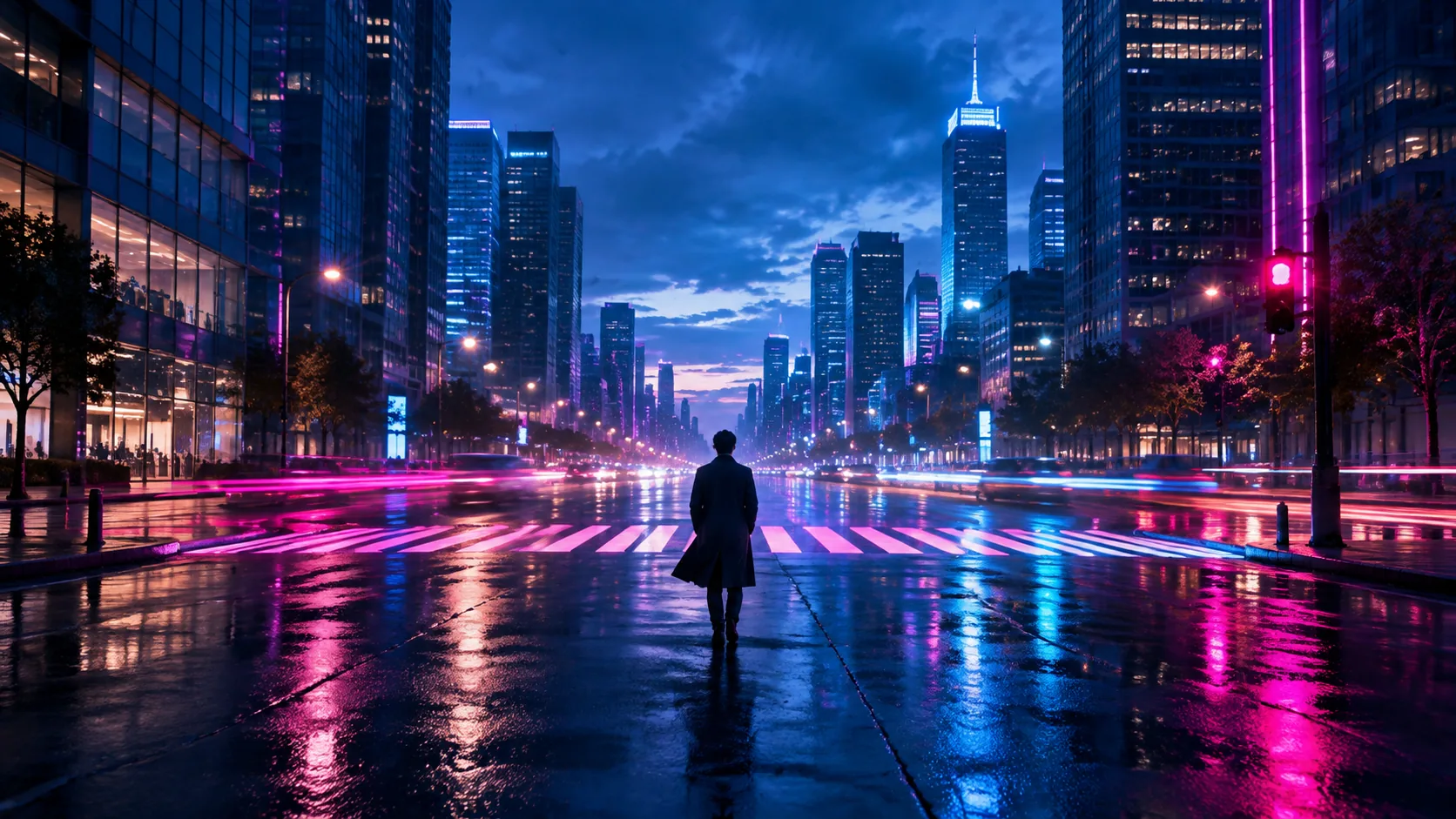
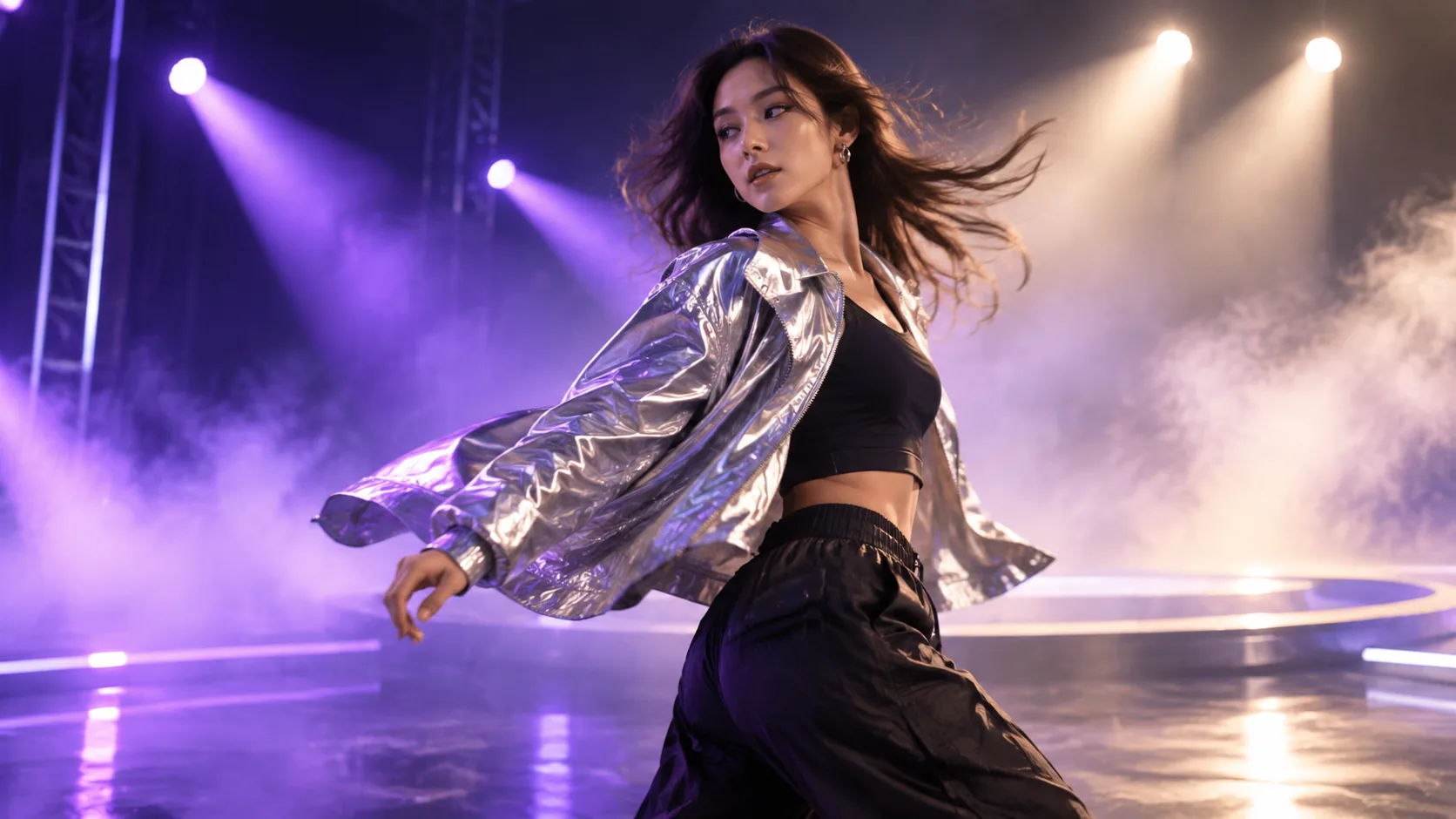
Describe the subject, the setting, and one camera move. Generate a short clip, review what changed, then refine the instruction that mattered most.
AI VIDEO & IMAGE GENERATOR
PixVerse AI turns a prompt or a reference image into video and stills. Choose a model, decide the format, and iterate on a first result in seconds.
WHAT IS PIXVERSE AI?
PixVerse AI is a creative platform for generating video and images from a prompt or a reference image, with the controls you need to keep a project consistent.
Describe the subject, the setting, and one camera move. Generate a short clip, review what changed, then refine the instruction that mattered most.
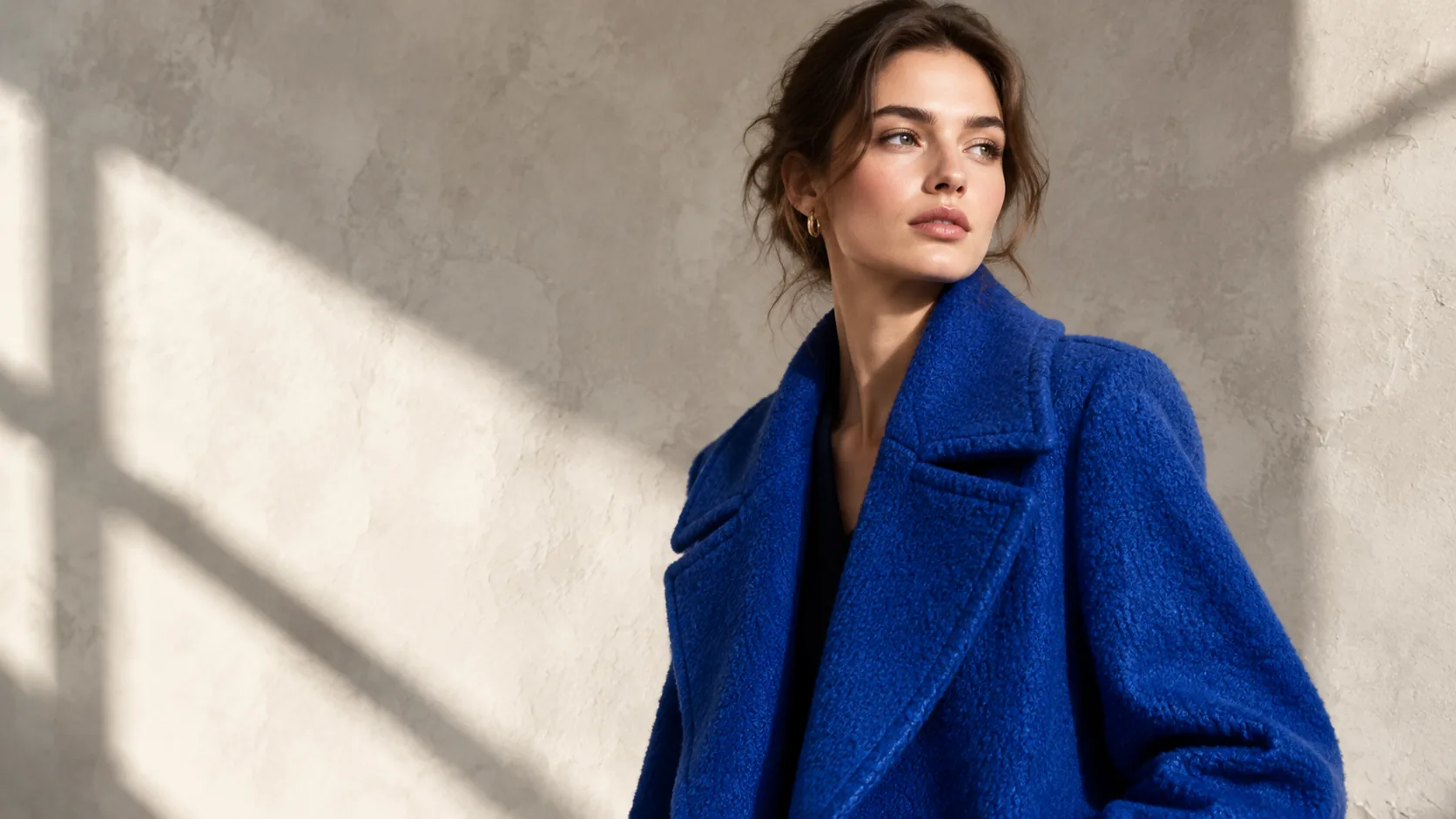
Build a first frame with the composition, wardrobe, palette, and light you want. A strong still makes every later video attempt easier to judge.
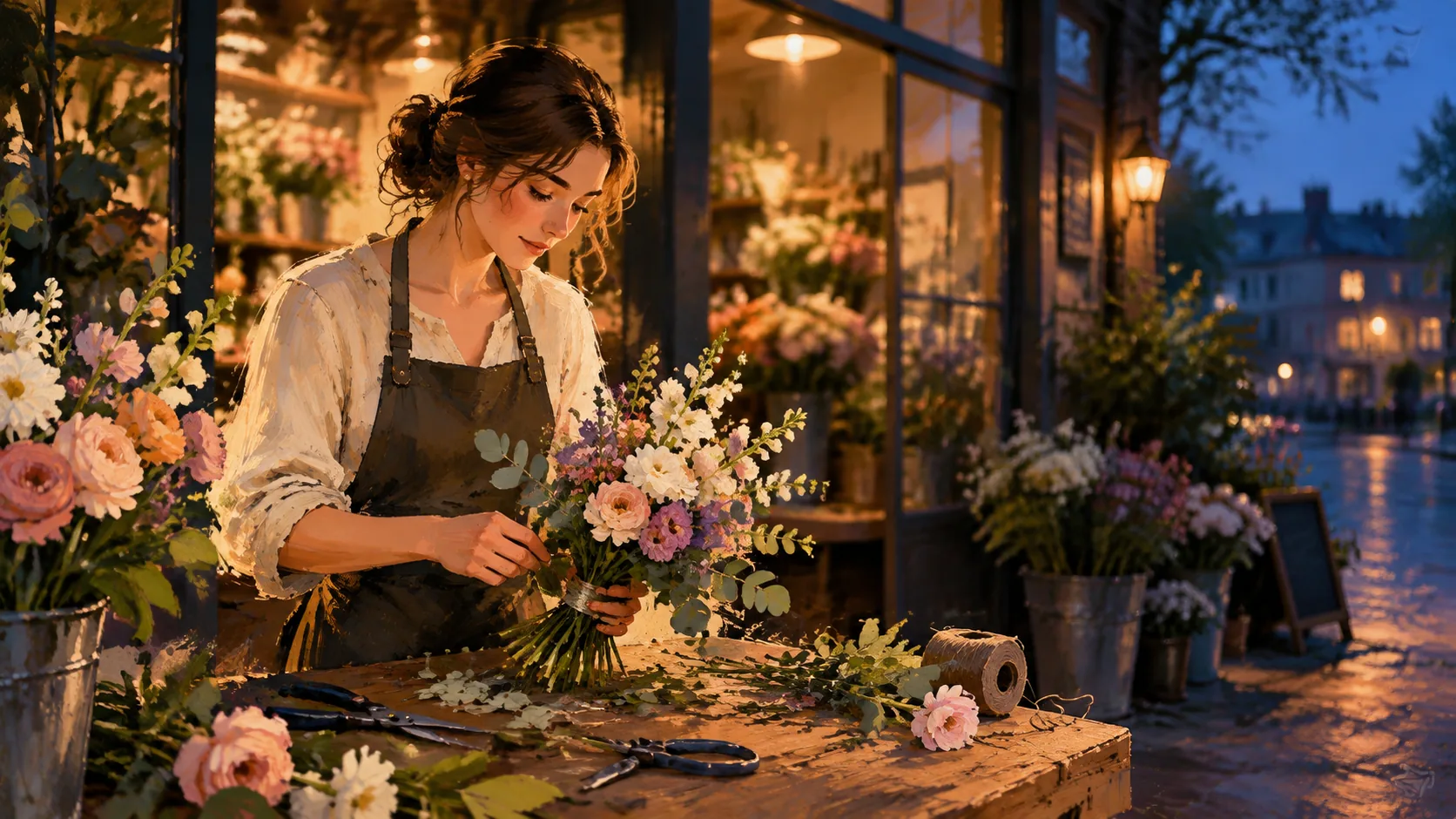
Upload a photo and let the model hold the subject while the motion, grade, or art direction changes. Useful for products, portraits, and archive shots.
MODELS
Each model family is tuned for a different job. Switch models for a comparison pass, then change one variable at a time.
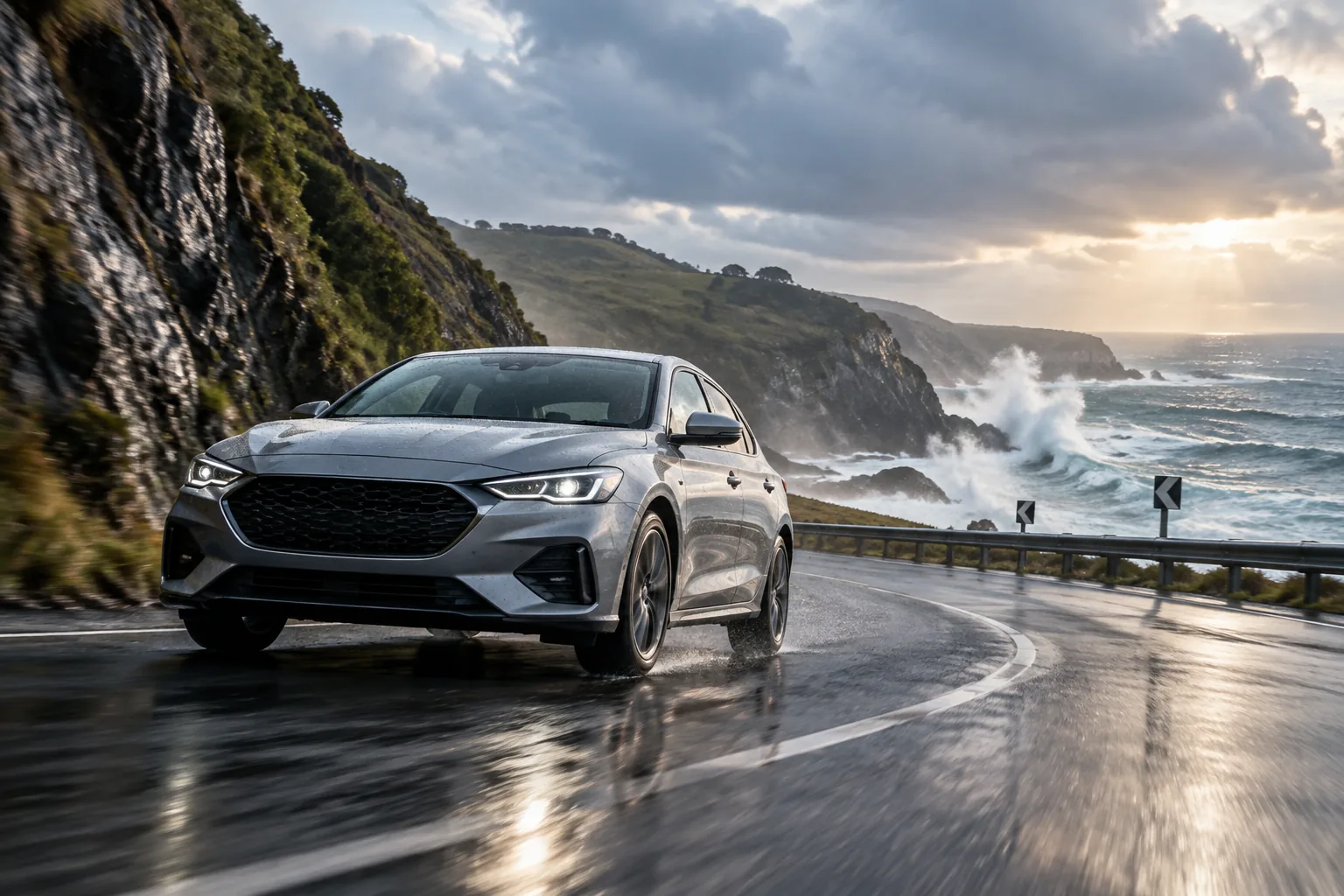
The default choice for prompt-to-video and image-to-video work. V6 balances motion, detail, and prompt accuracy, which makes it a good baseline when you are still deciding what the shot should be.
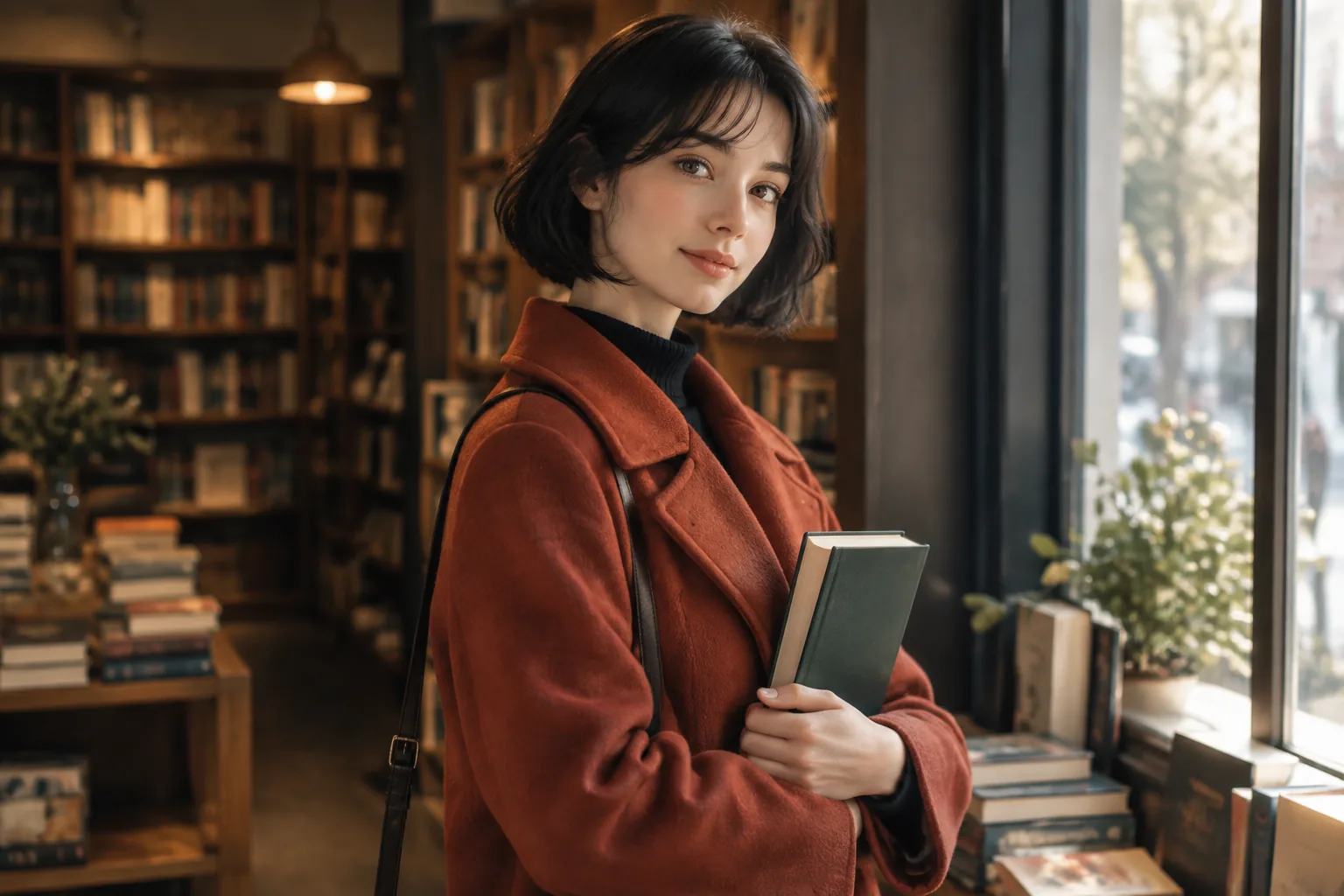
C1 is built for stories with recurring people, products, or mascots. Keep a character sheet or a clean reference portrait handy so the same face and wardrobe can carry across shots.
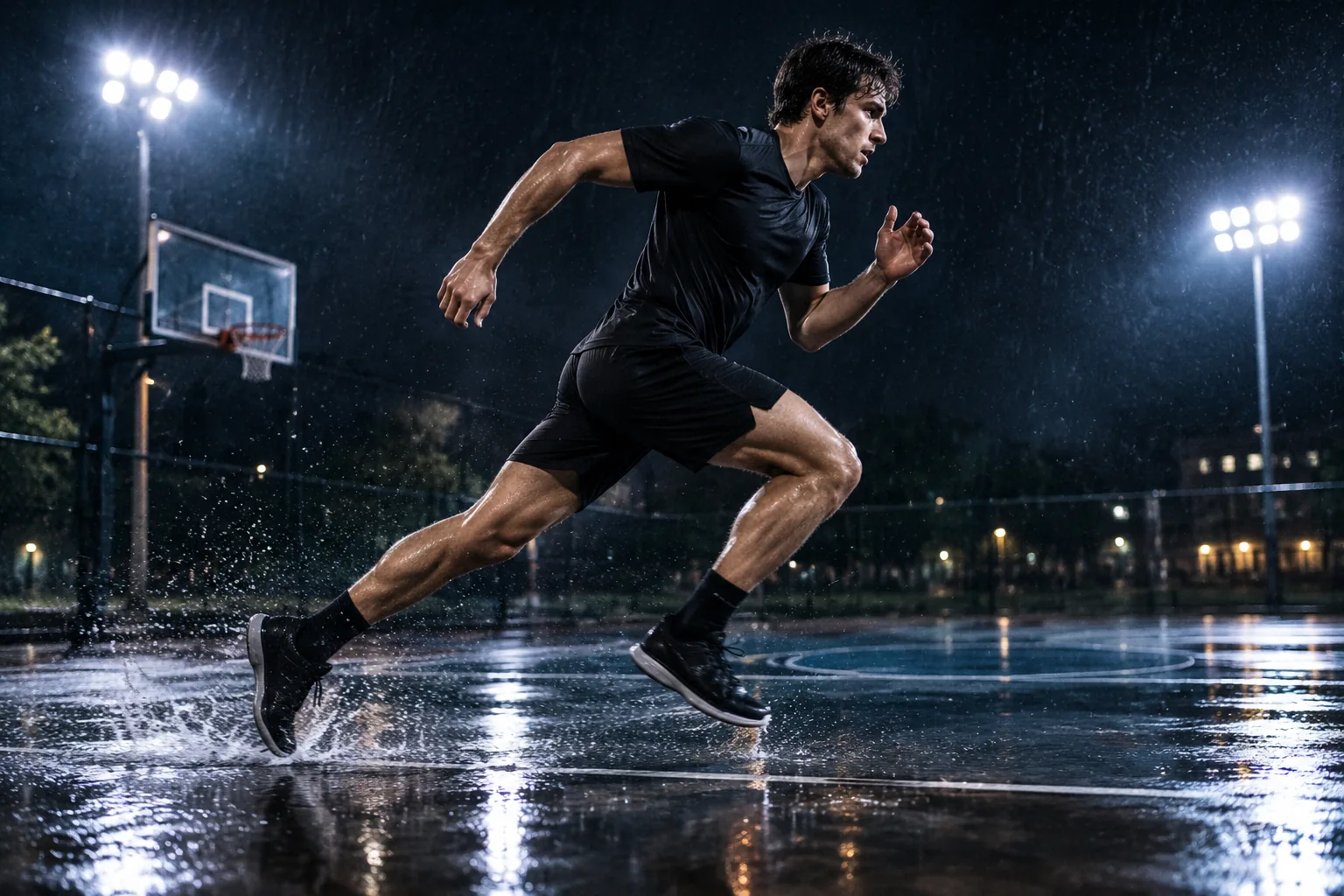
R1 focuses on physical movement and camera language: a push-in that lands, a tracking shot that holds, a handheld feel that does not fall apart. Reach for it when the motion itself is the point.
WORKFLOWS
Start with a single clip, script a campaign, plan a sequence on a canvas, or wire generation into your own tooling.
AGENT
Hand over a brief in plain language: the product, the audience, the length, and the formats you need. Agent plans the shot list, generates the frames, and returns a set you can approve or redirect.
Start a brief ↗MARKETING HUB
Turn a single concept into vertical, square, and wide cuts with copy that matches each placement. Keep the visual language consistent while the framing and pace change per channel.
Plan a set ↗CANVAS
Lay out frames, references, and prompt versions side by side. Compare what changed between renders and decide the next edit before spending another generation.
Open the canvas ↗CLI
Call the same models from a terminal or a build script so renders can run on a schedule, inside CI, or as part of a larger asset pipeline your team already maintains.
Review the interface ↗FOR TEAMS
Give a team one place to plan, generate, and review creative work, with access that matches how your organisation already operates.

CREATOR WORKS
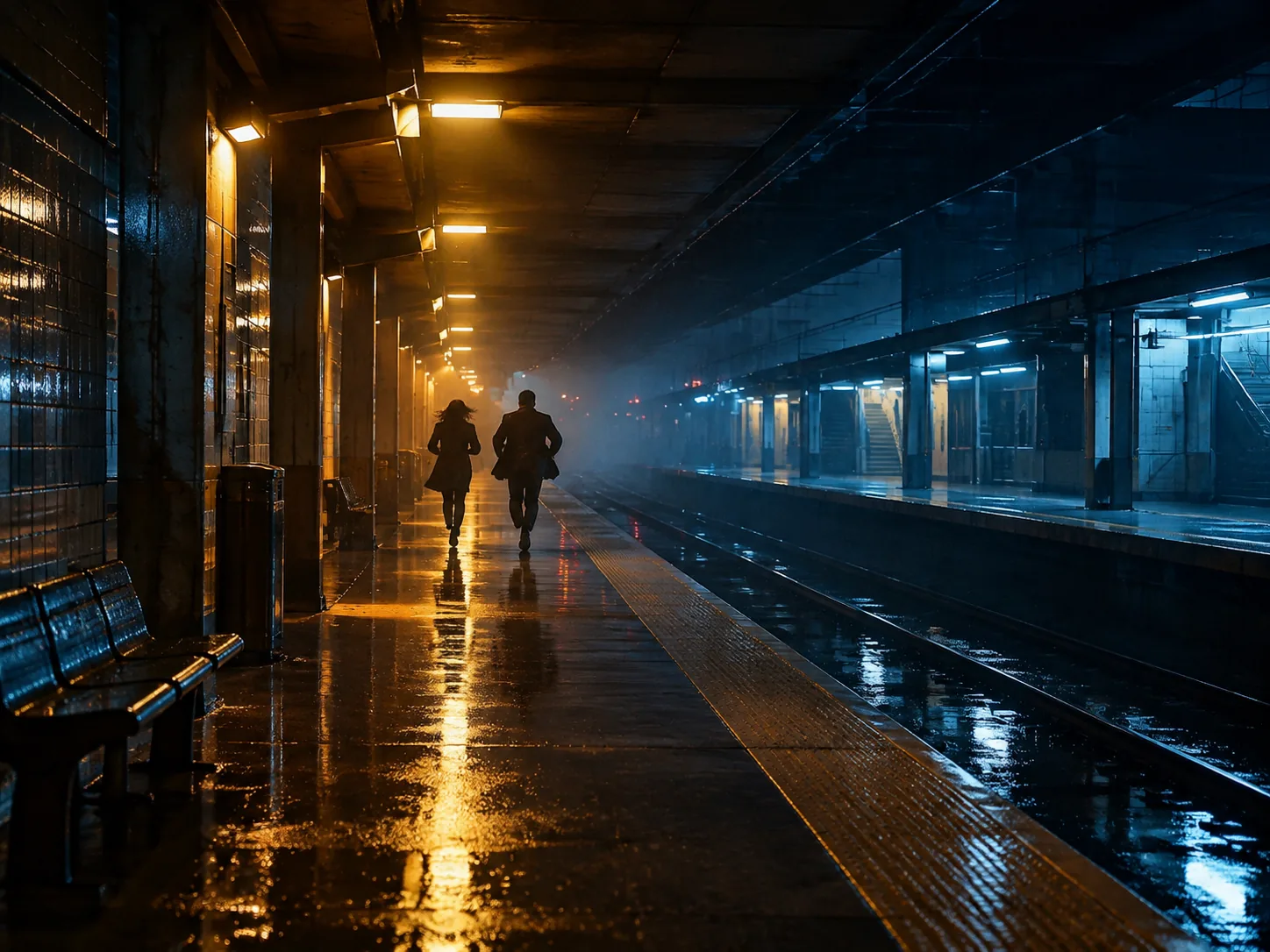
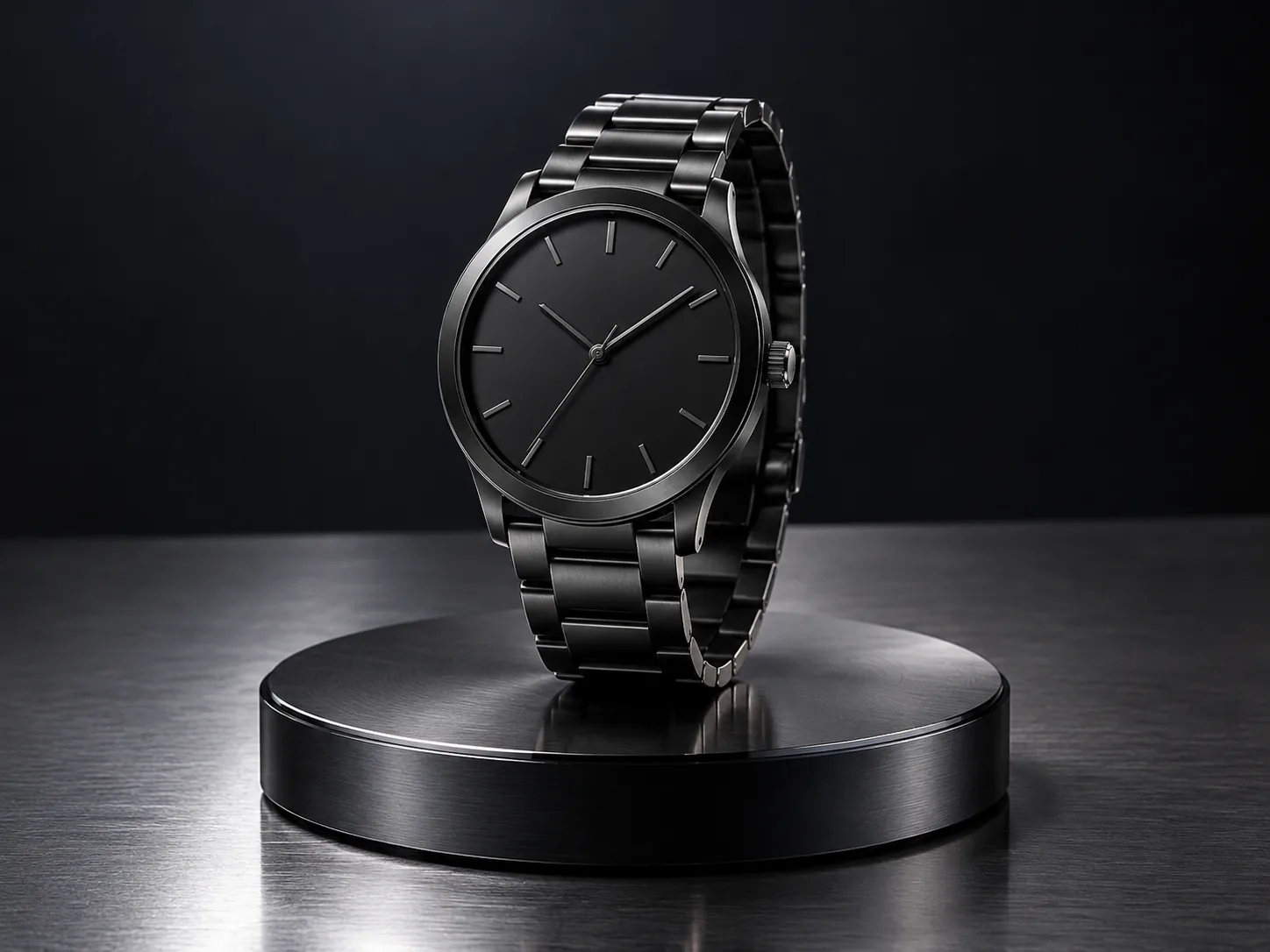
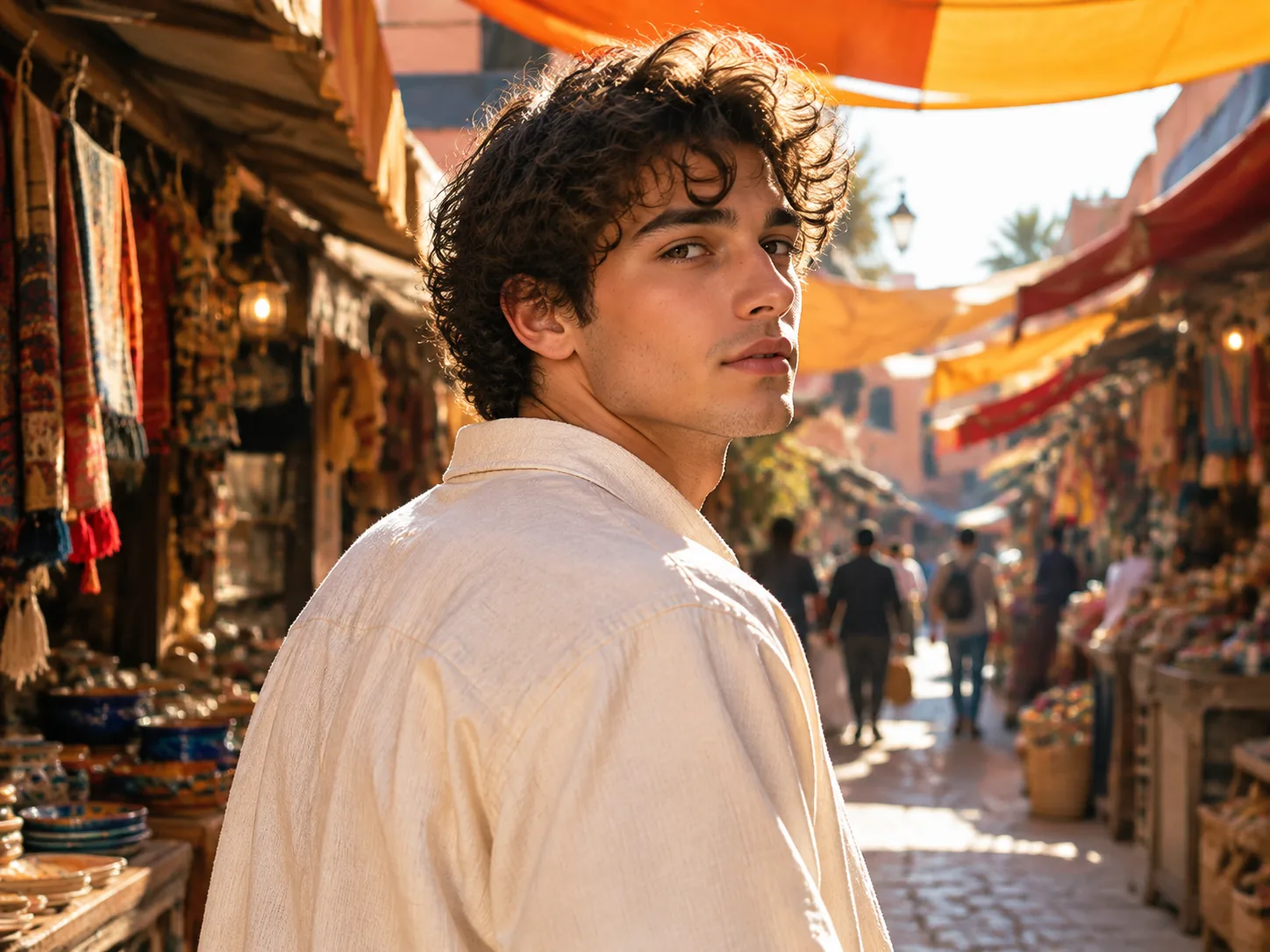
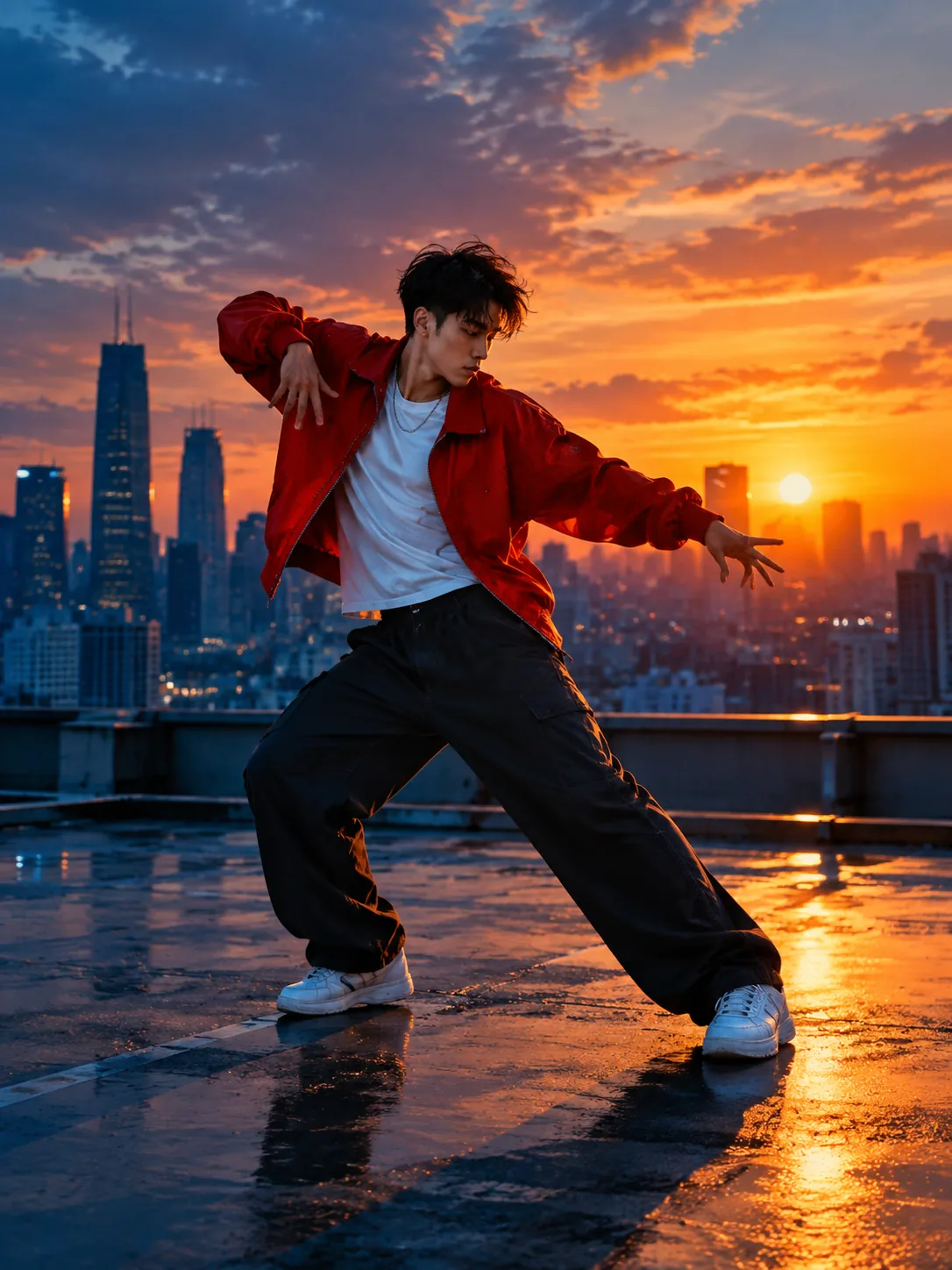
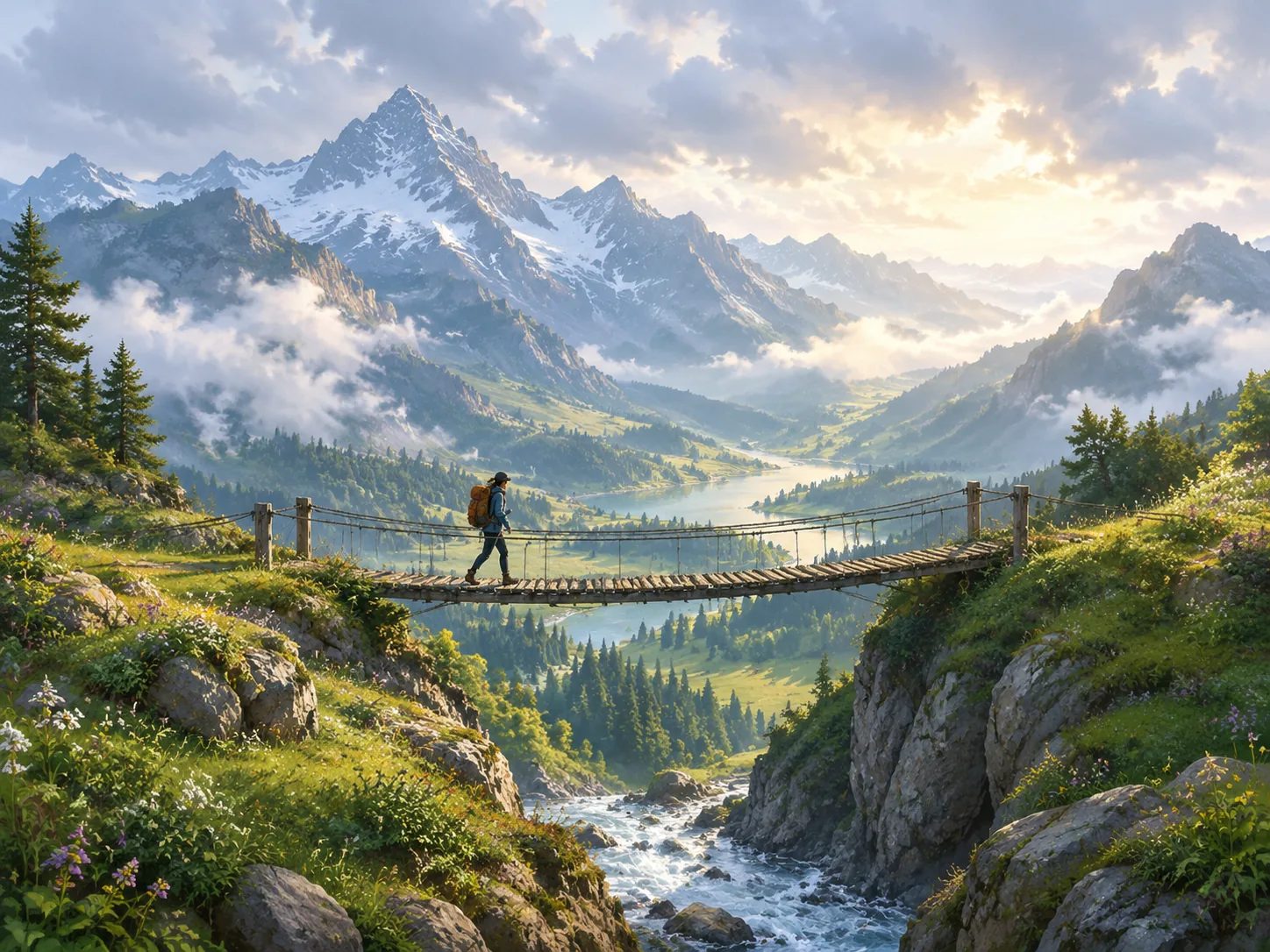
Short films, product spots, character studies, and social cuts, all built from a prompt or a single reference frame.
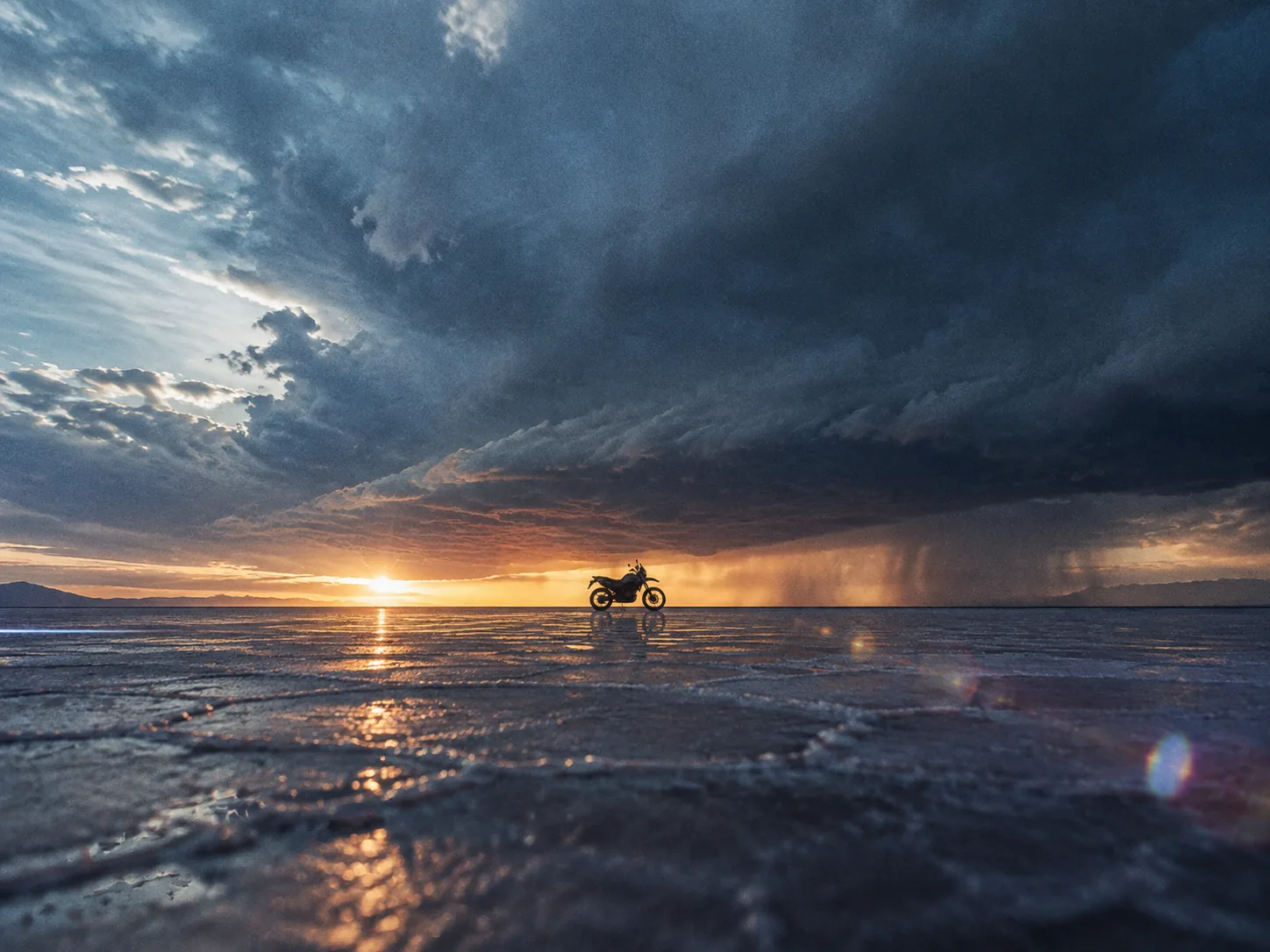
OFFICIAL VIDEOS
Watch recent work from the official PixVerse.ai site, from reference-led video to real-time worlds.
PIXVERSE R1
Watch the official introduction to PixVerse R1 and its continuous real-time world model.
Watch on YouTube ↗REFERENCE TO FINAL
See how official PixVerse reference images carry through a finishing workflow.
Watch on YouTube ↗POST-PRODUCTION
Follow an official PixVerse clip from generation into a DaVinci Resolve color grade.
Watch on YouTube ↗NEWS
Product notes, model updates, and workflow guides for people making video and images every day.
A practical structure for prompts: subject, action, setting, light, and one camera move. Includes examples you can adapt to your own project.
Try the structure ↗When a general model is enough, when consistency matters more, and when realistic motion should drive the decision.
Compare models ↗Save a palette, a light setup, and a framing rule, then reuse them so every cut still belongs to the same campaign.
Read the workflow ↗PIXVERSE AI FAQ
Straight answers about getting started, choosing a model, and what to check before you use a result.
PixVerse AI is a creative studio for generating video and images from a written prompt or a reference image. You can start from text, from a photo, or from both together.
Start with V6 for general video work, switch to C1 when a character or product has to stay recognisable across shots, and use R1 when the movement and camera work matter most.
Yes. Upload a reference image to hold the subject, composition, or palette, then use the prompt to describe what should change. Review the first result for drift before adding more motion.
Pick the ratio for where the clip plays. 9:16 suits short-form vertical, 1:1 suits feeds, 16:9 suits landscape and presentations, and 21:9 gives a wide cinematic frame.
Usage rights depend on your plan and the material in the project. Confirm the applicable terms and rights for each release before publishing or delivering work.
READY TO CREATE?
Write a prompt, choose a ratio, and generate a free result you can build on.
Start creating